Manage all Dates in your Course
This tutorial shows how to manage dates for all activities in your course.
Definitions:
- Start Date: Defines when students can begin accessing a module or topic. Before the start date, the item can either be visible with restricted access (students see it but cannot open it) or completely hidden, depending on the teacher’s visibility settings.
- Due Date: Indicates when a module or topic is expected to be completed. It is a soft deadline that does not block access and appears in the course calendar as well as on the DTU Learn front page under “Work to Do.”
- End Date: Specifies when students can no longer access a module or topic. After the end date, the item can remain visible but not openable or be fully hidden, depending on the teacher’s chosen visibility settings.
Follow these steps:
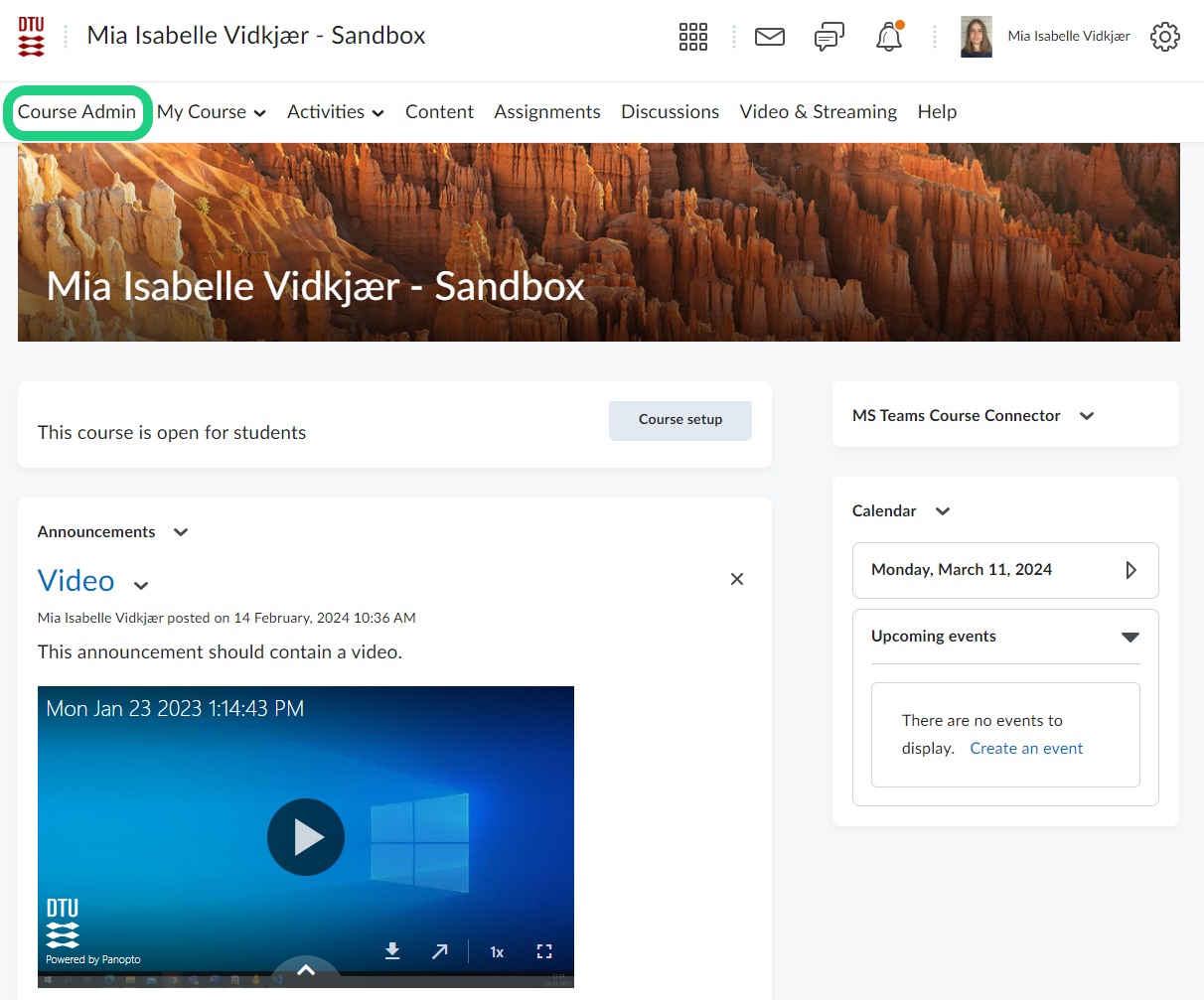
- Open your Course Admin from you Navbar.
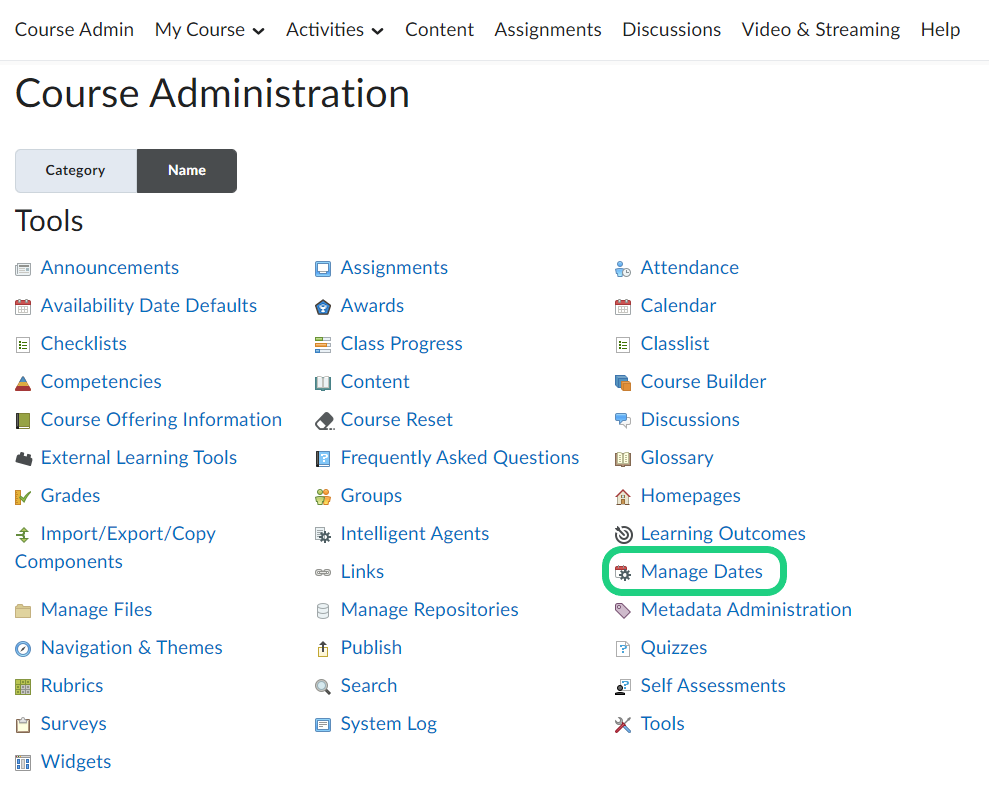
- Click on 'Manage Dates'.
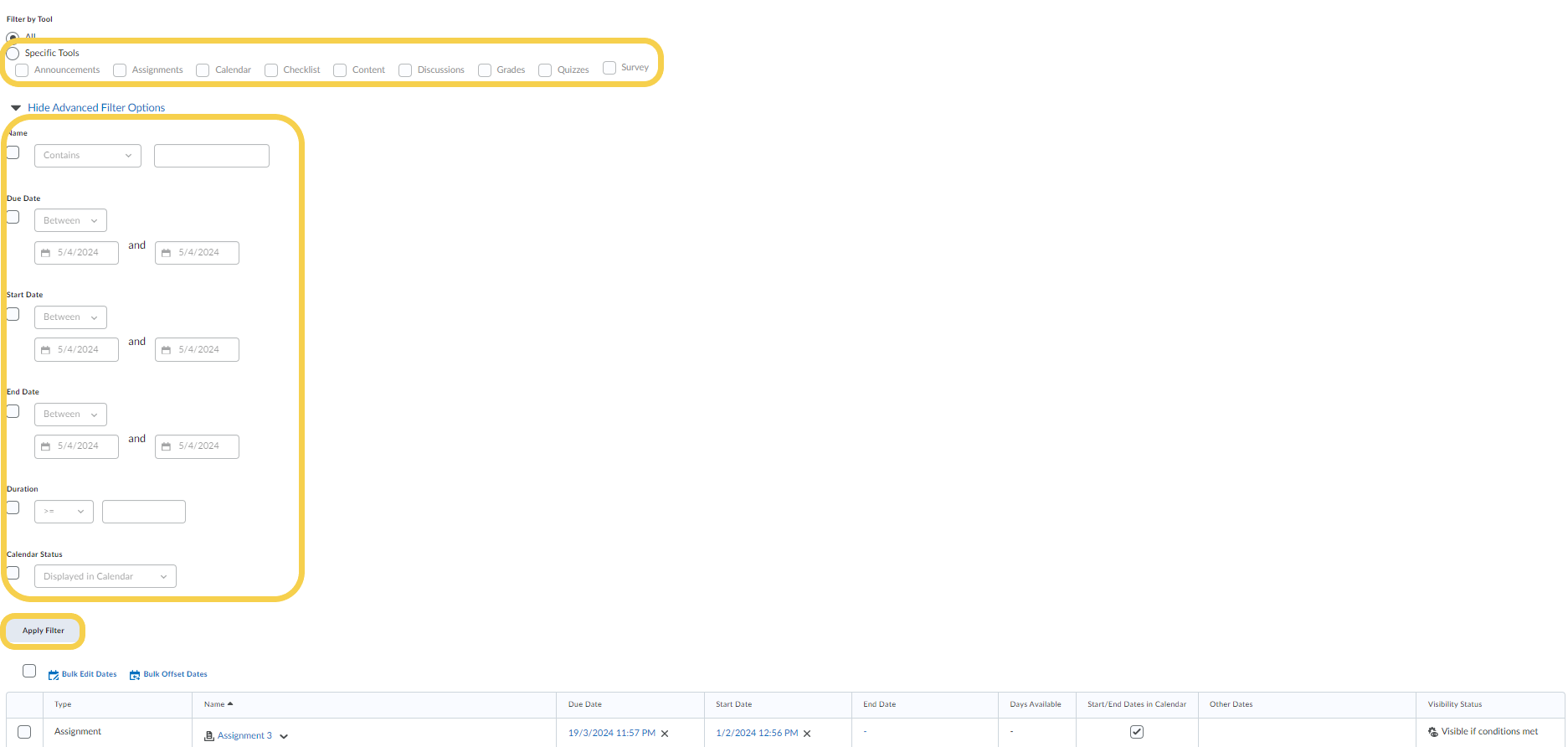
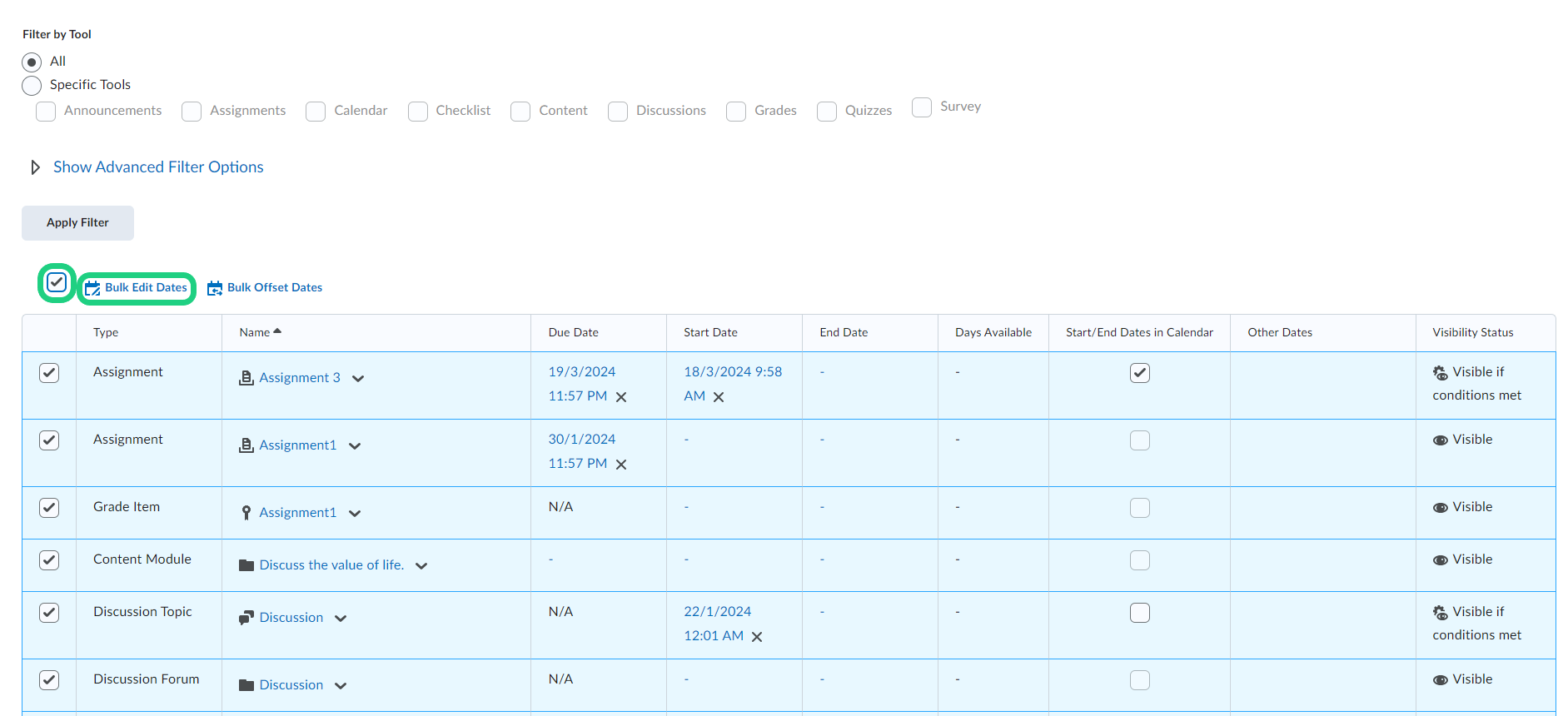
- To look for specific activities in your course select 'Specific Tools' or use the advanced filter to search for items from a specific time range. Then click on 'Apply Filter'.
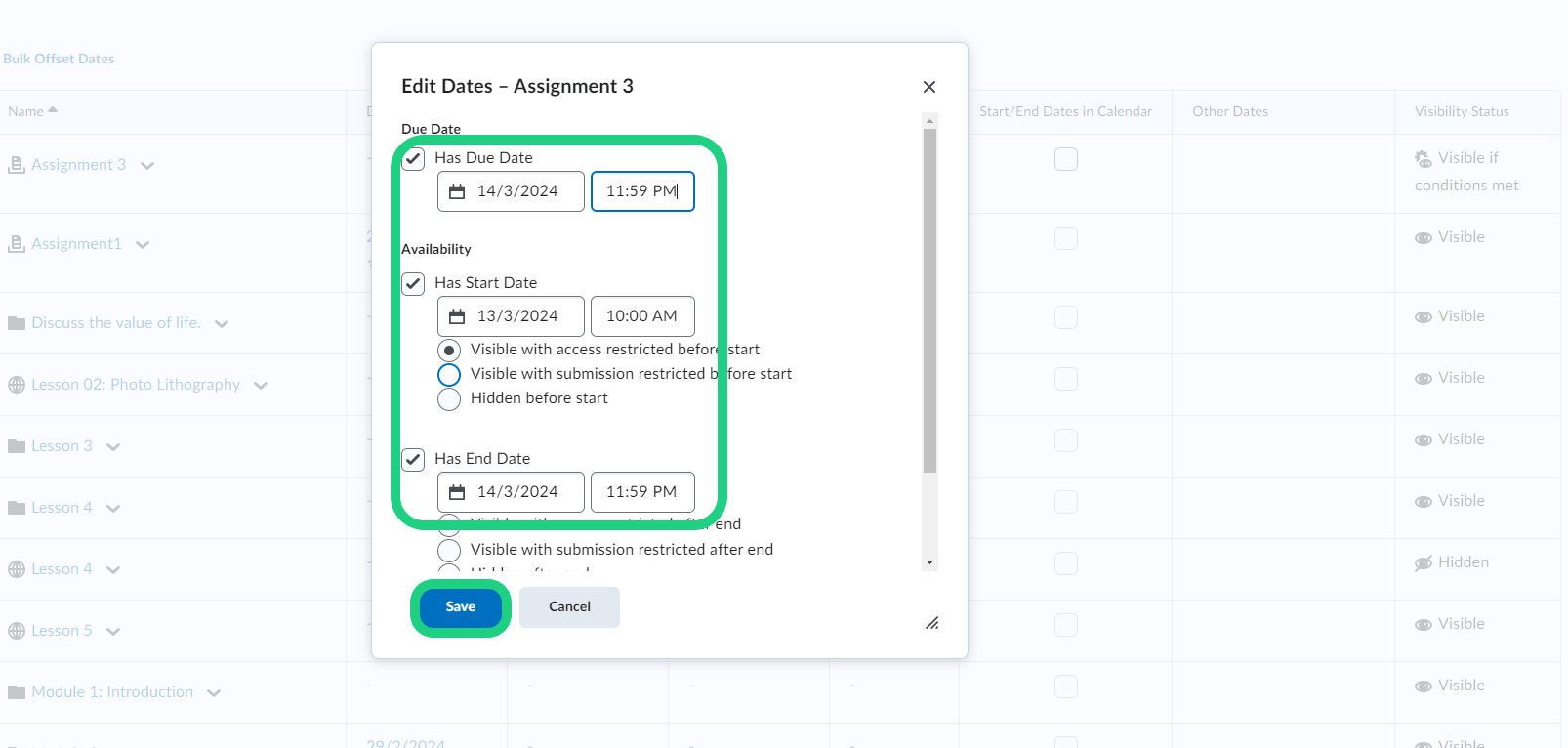
- You can edit the dates of a specific item by clicking on the arrow next to the item and selecting 'Edit Dates'.

- In the pop-up window change all dates to the desired date and click on 'Save'.
- If you select several items by checking off the box in front of their name, you can bulk edit or bulk offset the dates.
Below is the offset function shown.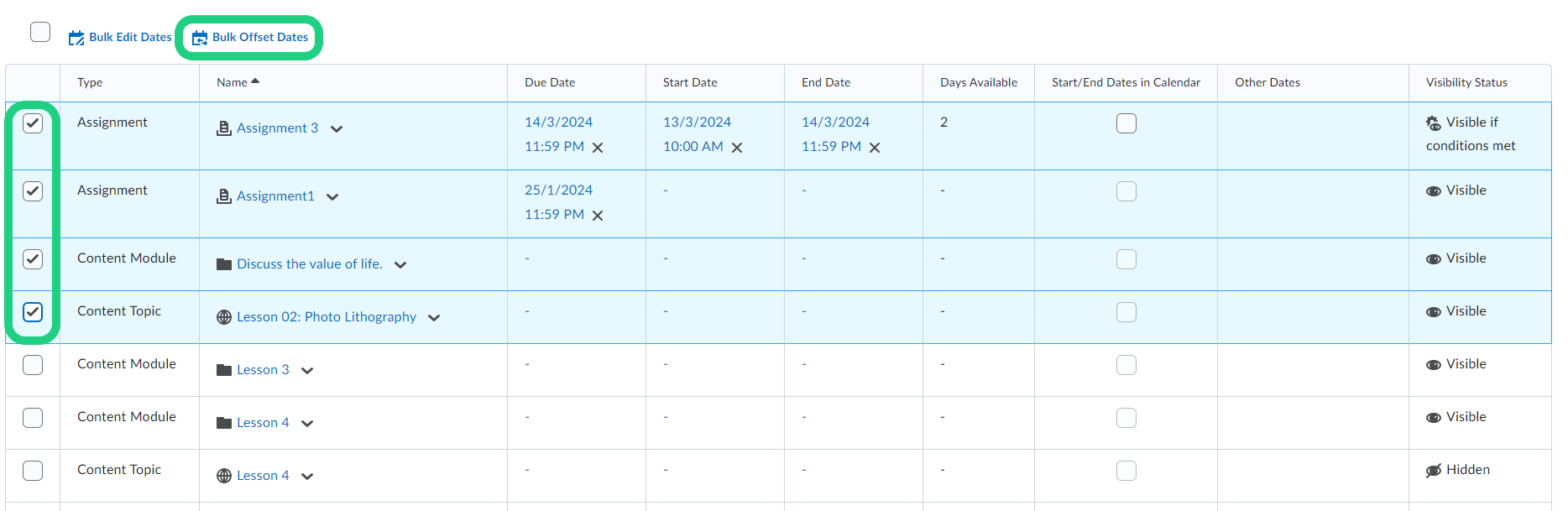
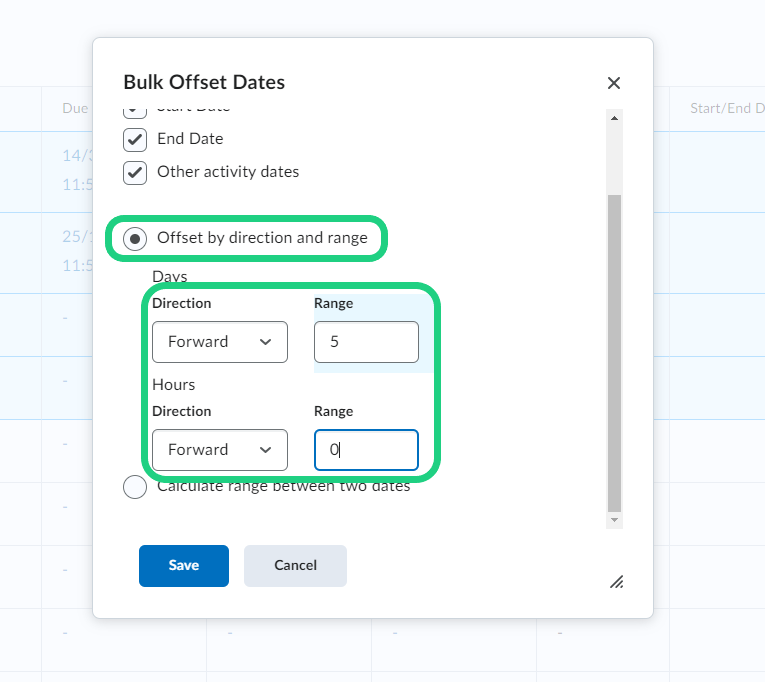
- To offset the dates you can select to offset by a specific range if you know the exact amount of days and hours that should be offset.
- Alternatively you can choose to offset by a calculated range between two dates.
To finish click on 'Save'.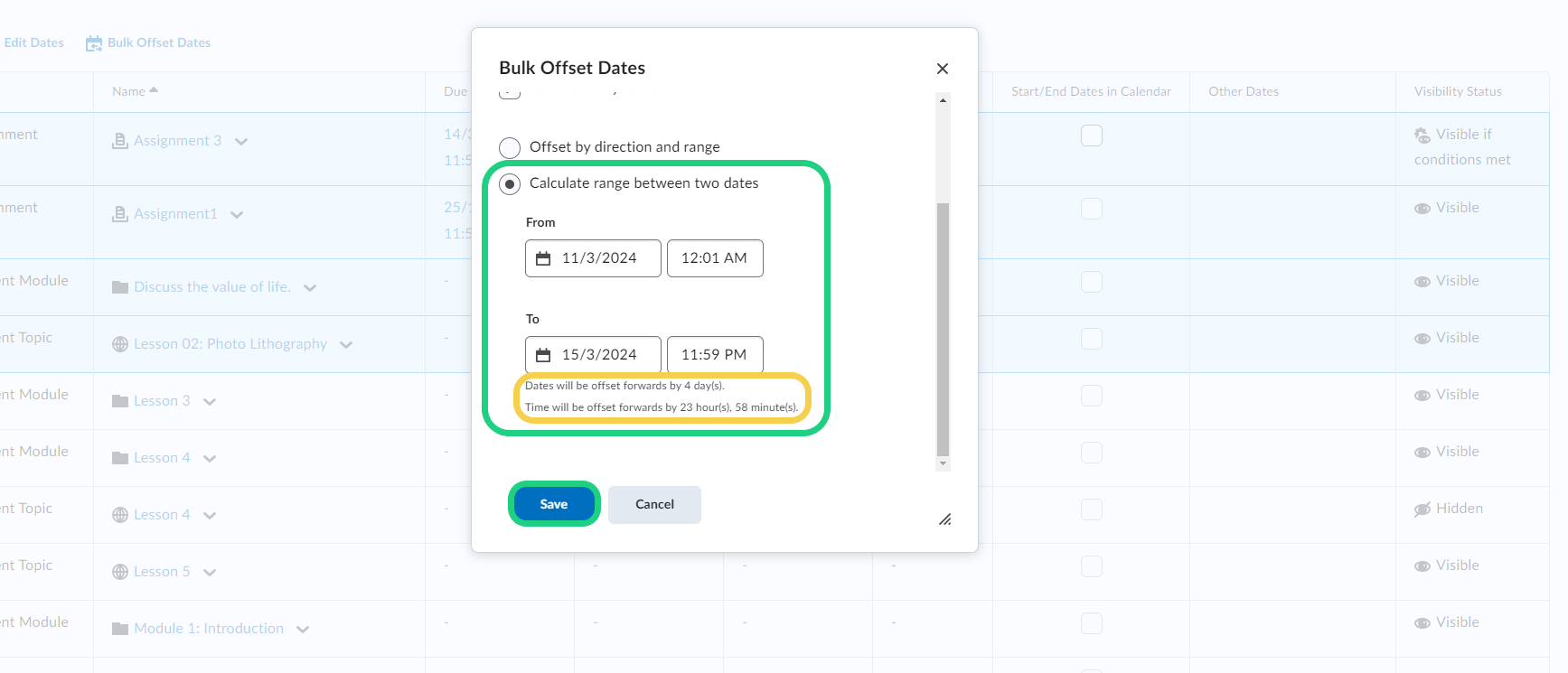
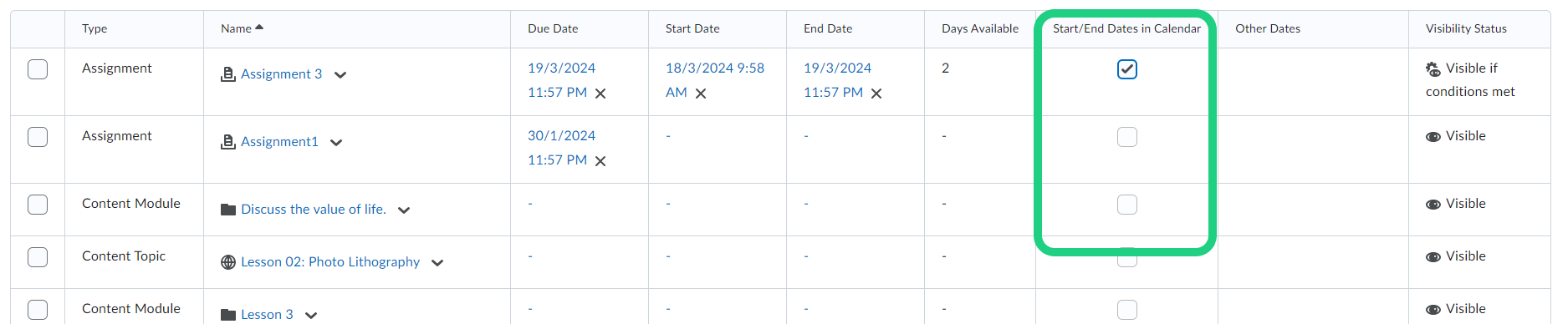
- In the overview of your dates you can also select if you want to add the start/end dates in your course calendar by checking of the boxes as shown below.
- To remove the end date for all listed items, select all items and click on 'Bulk Edit Dates'.
- Check the box under 'End Dates' and click on the field next to the box to open the drop-down menu, where you can choose to select 'Remove'. Finish by clicking on 'Save'.

