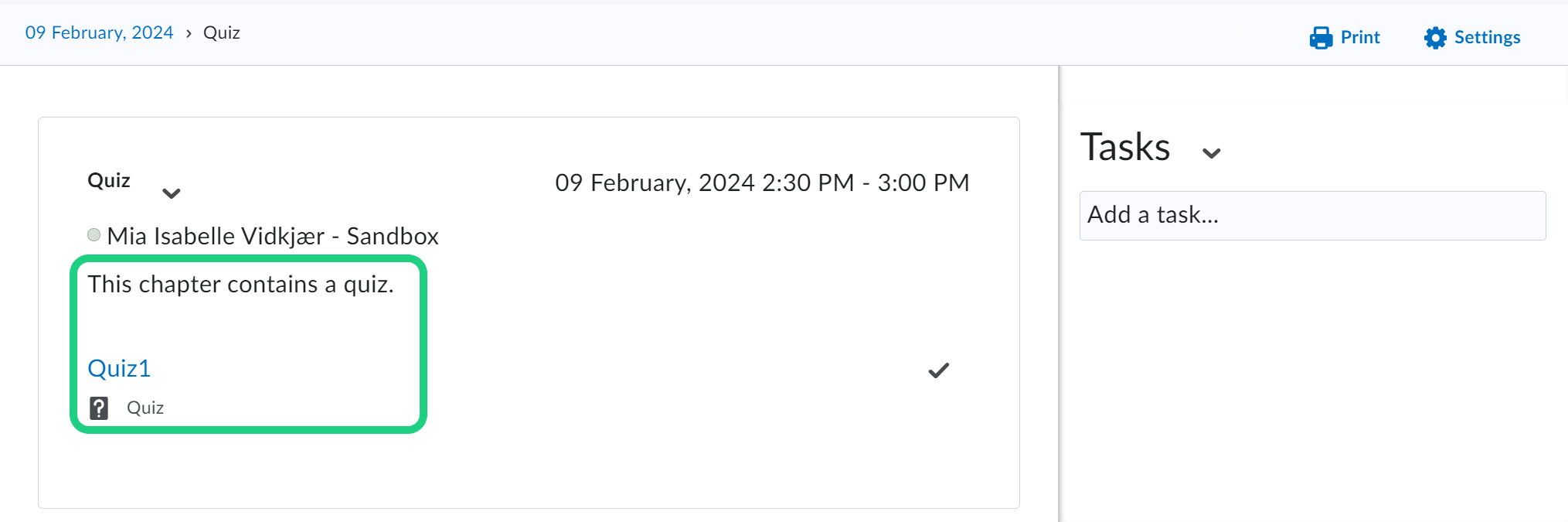
Creating a Calendar Event and adding Content
This guide shows how to manually create a Calendar Event in the Course Calendar and add a link to specific Modules, Activities or Course Materials from Content.
Please note:
- Course Materials and Activities are automatically added to the calendar when you set a due date.
- One week before each course period begins, the location booking for each lesson is published in TimeEdit – and automatically pushed as Course Calendar Events in DTU Learn.
Follow these steps:
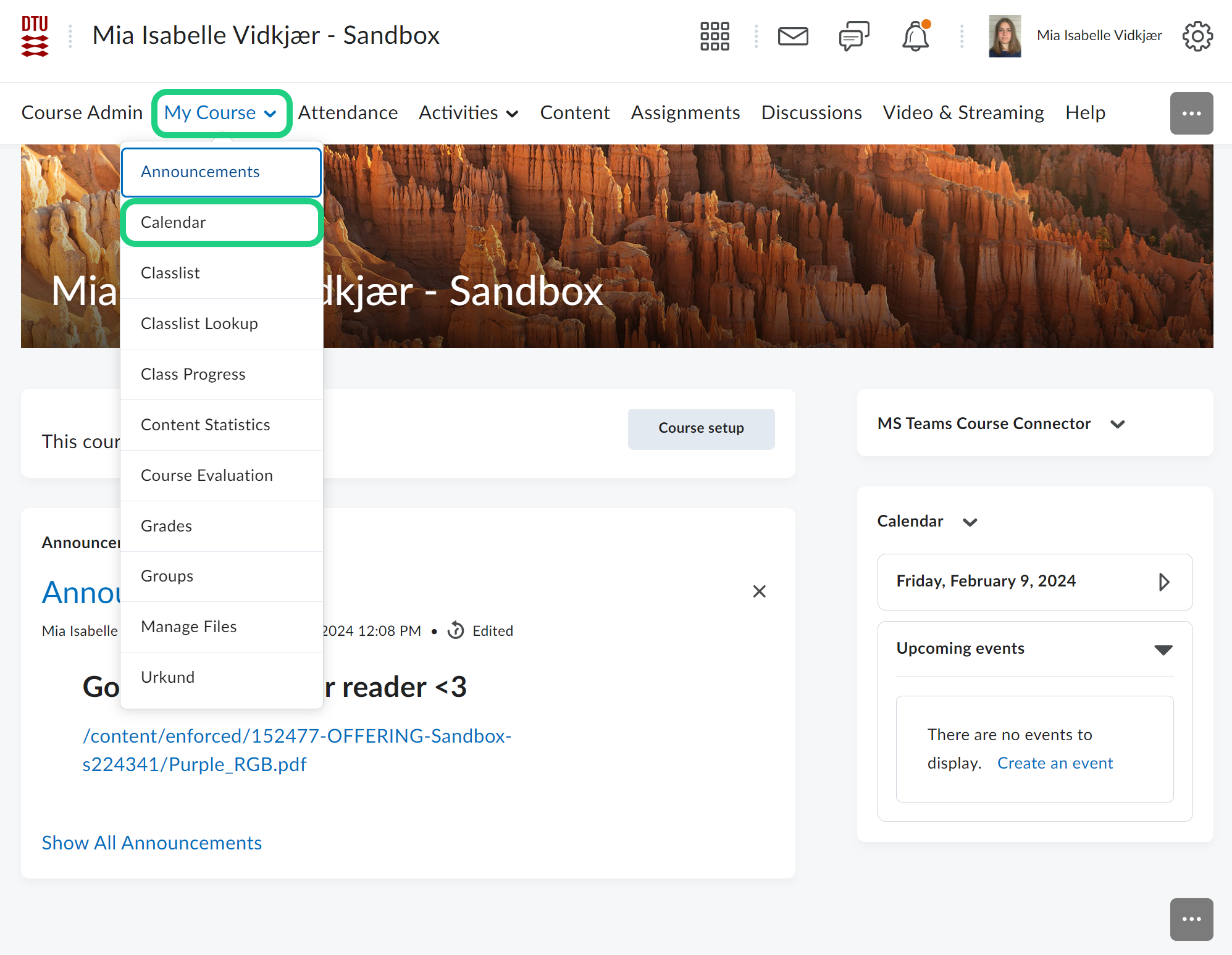
- Open the calendar in your course.
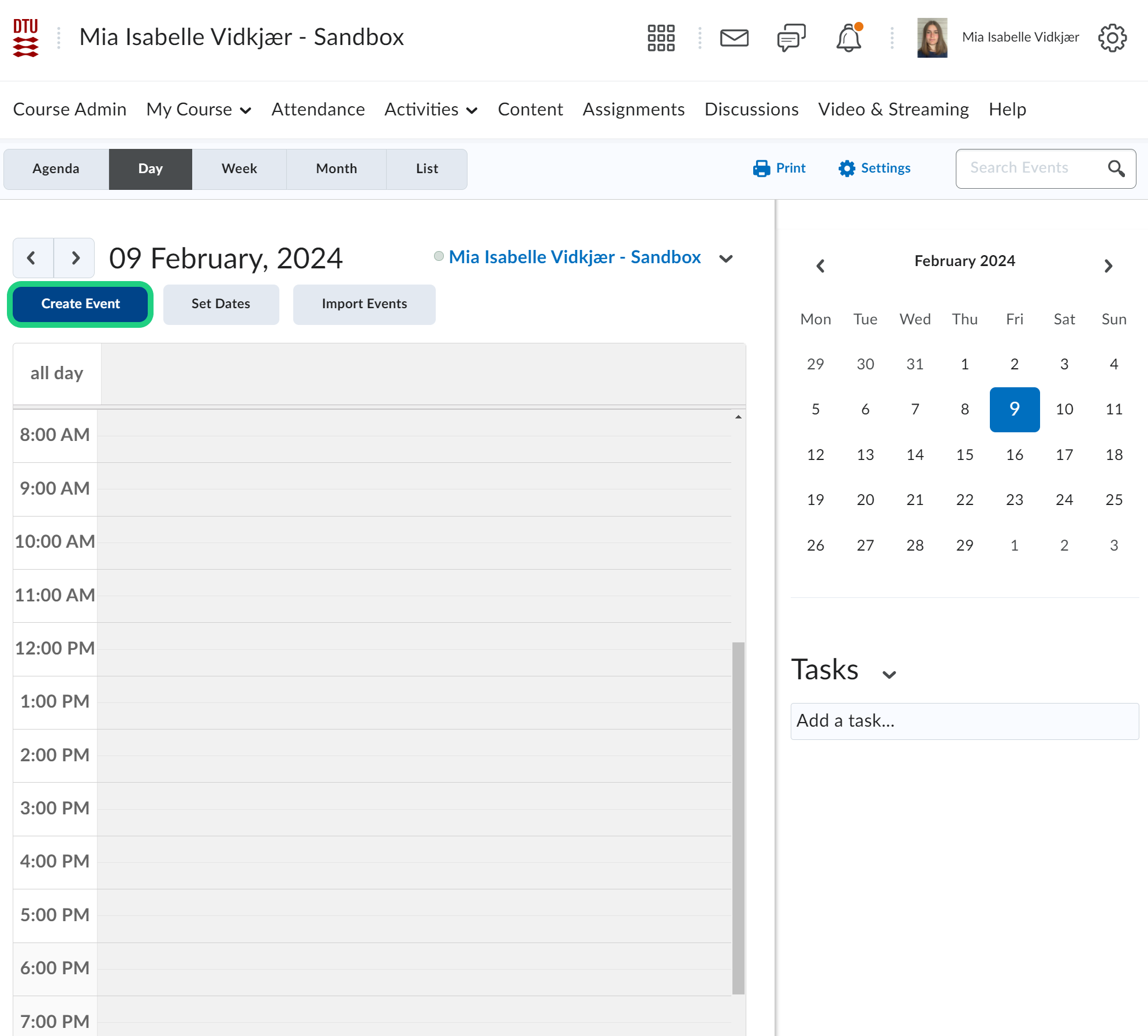
- Click on 'Create Event' or edit an existing event.
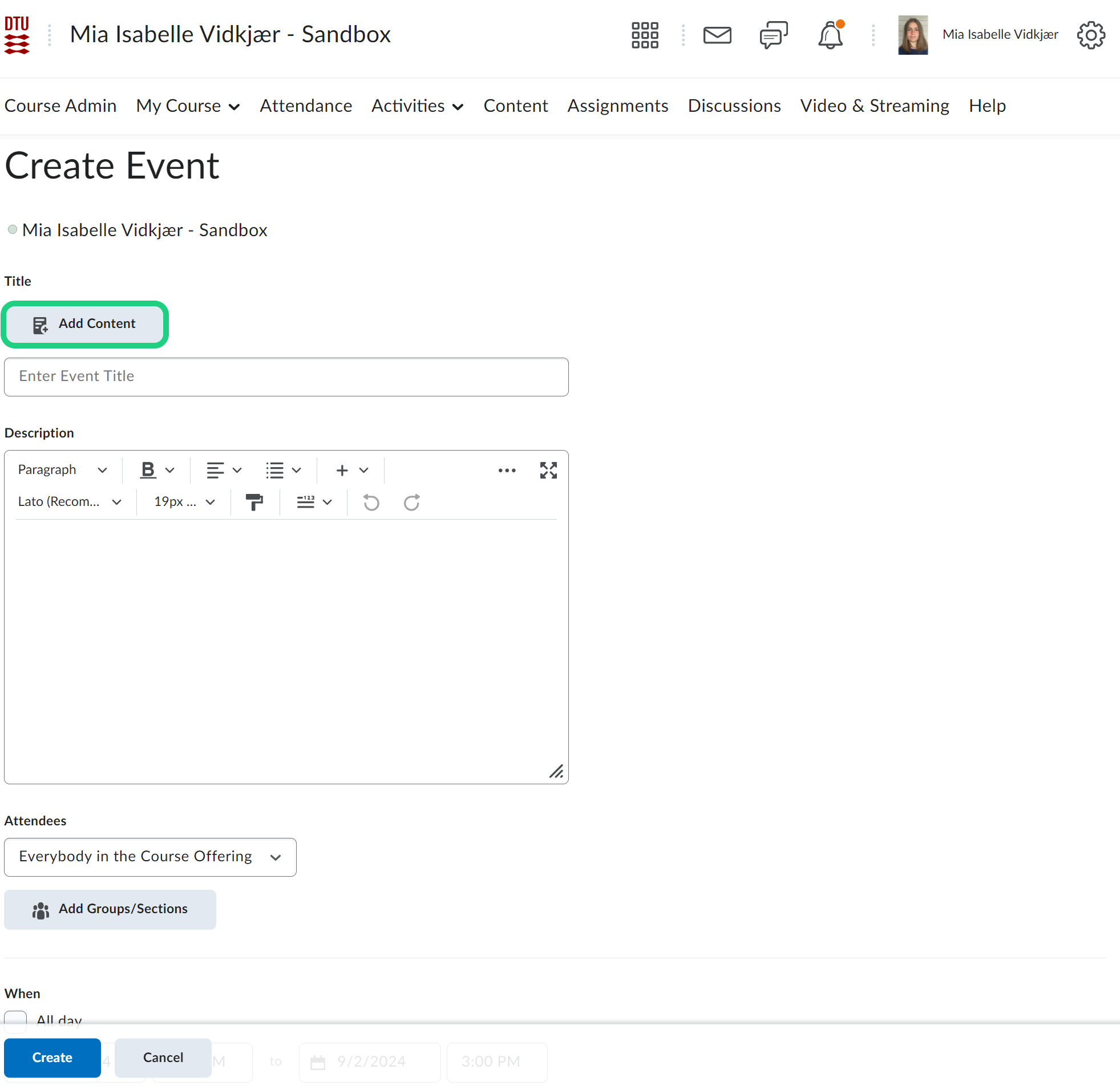
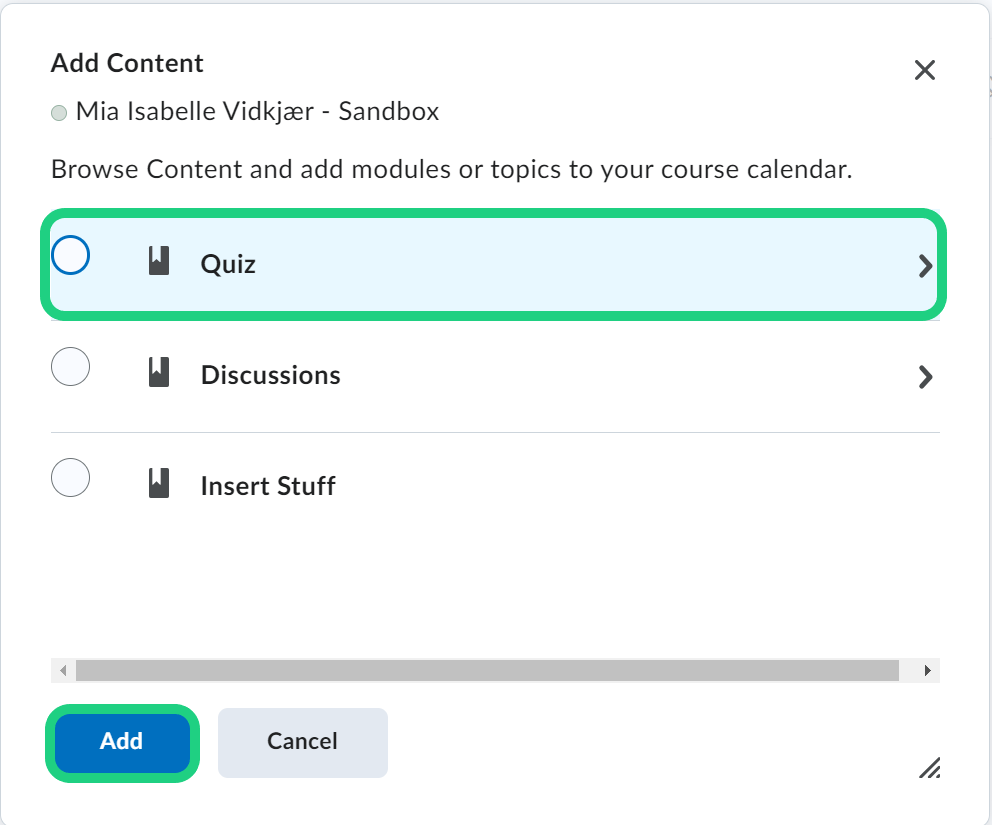
- Click on 'Add Content'.
- In the pop-up window you can see everything that is on your content page. By clicking on the circle in front of an item, you add a link to that item to your calendar event. After selecting an object, click on 'Add'.
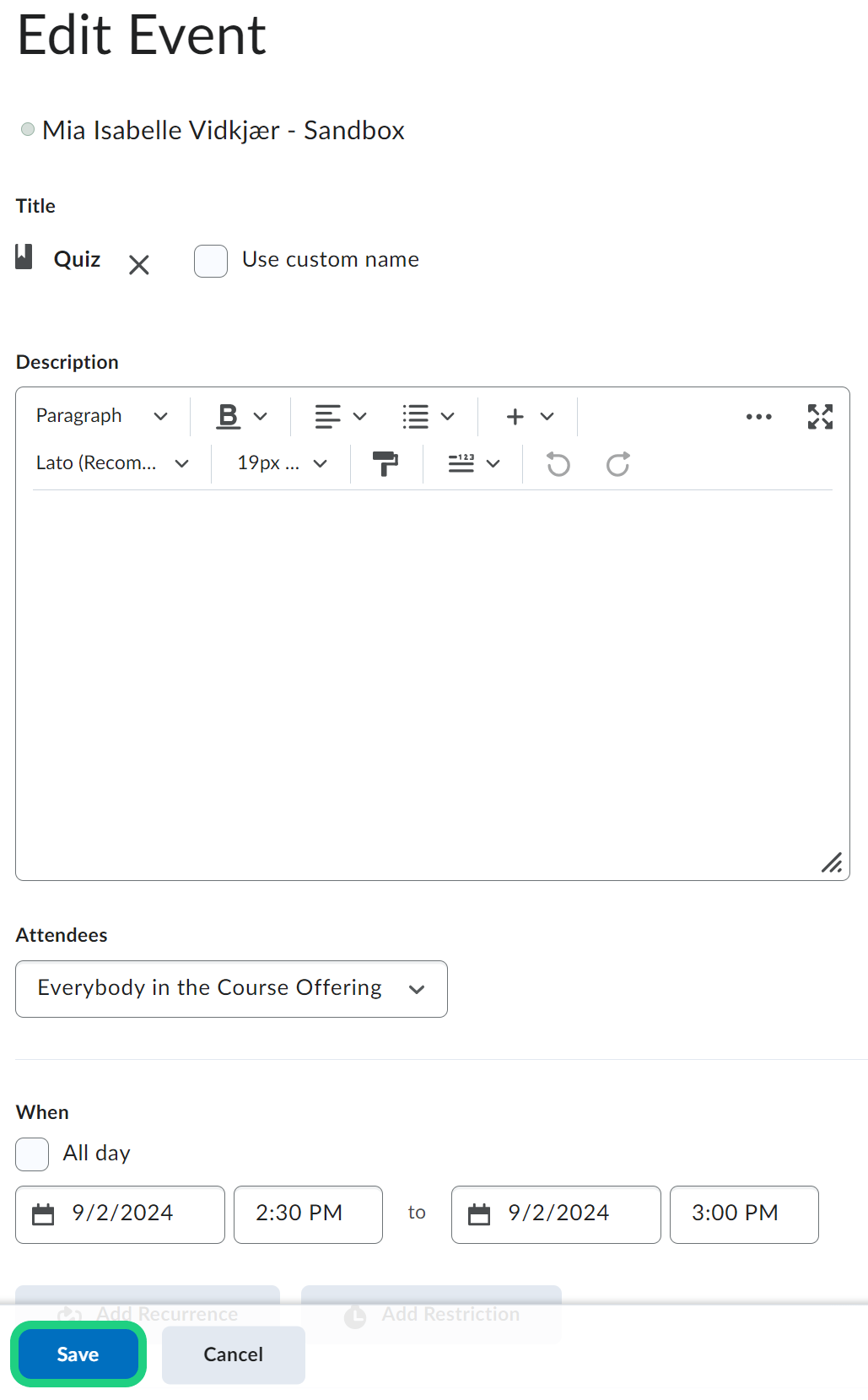
- When you are done editing the rest of your calendar event, click on 'Save'.
- The complete event can now be seen by clicking on it in the calendar and then clicking on 'More...'.
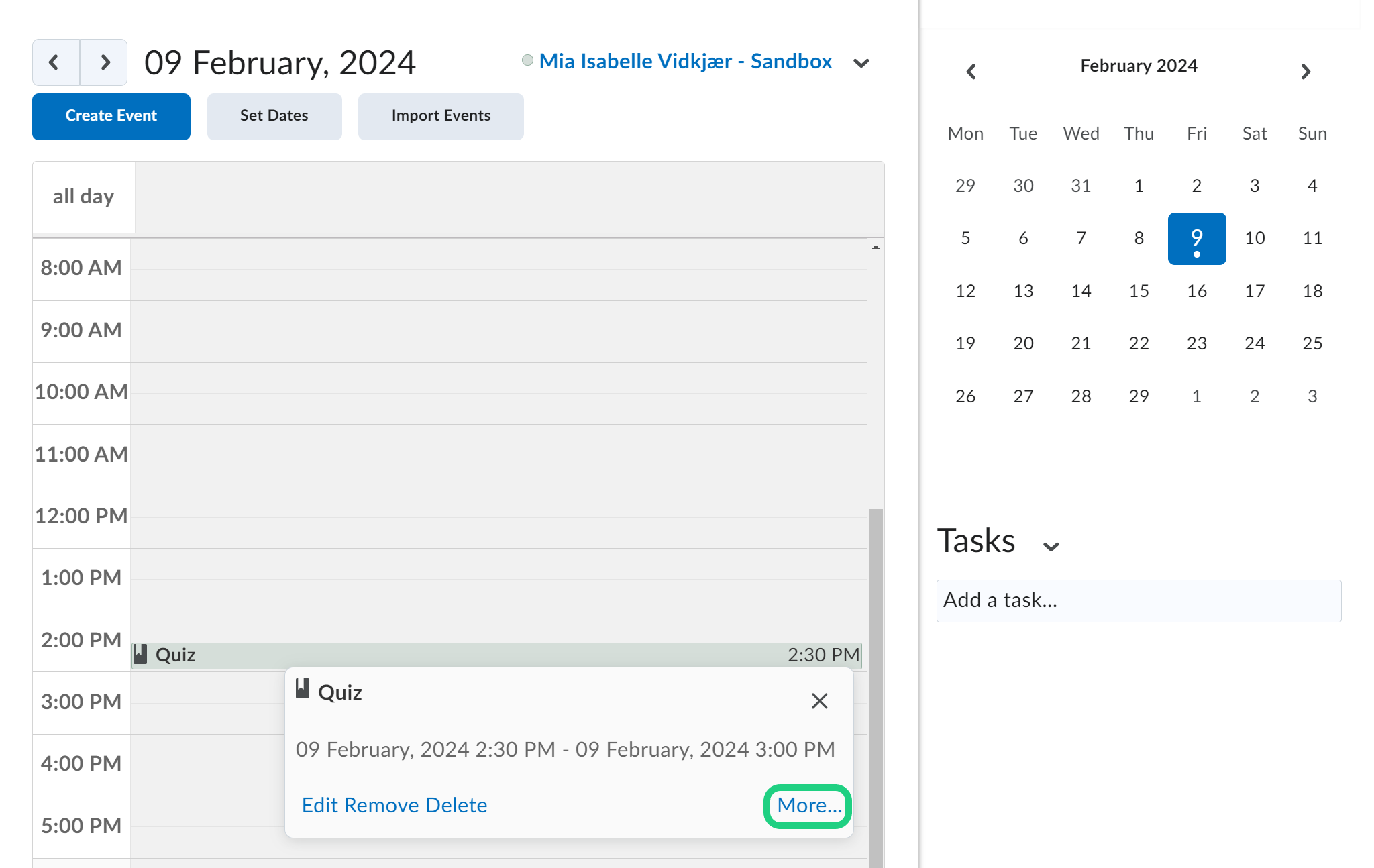
- The calendar event contains a link that leads to the earlier selected item on the content page. If you do not add a description to the event, the description from the linked content page is included and updated in case of changes on the content page.